Calibration App Reference#
This page covers the calibration app UI, capture settings, and uploaded files.
Core Functions#
Real-time AprilTag detection (Tag36h11) with 3D pose overlay
Configurable capture settings for resolution, FPS, target detections, zoom, and camera selection
Manual receiver connection via IP address and port
One-tap upload of each recorded session to the receiver
Video and metadata export for the downstream calibration pipeline
Capture Settings#
Setting |
Options |
Default |
|---|---|---|
Resolution |
720p / 1080p |
720p |
FPS |
10 / 15 / 20 / 30 |
30 |
Target detections per tag |
50 / 100 / 200 |
100 |
Zoom |
1x-5x |
1x |
Camera |
Front / Back |
Back |
UI Screens#
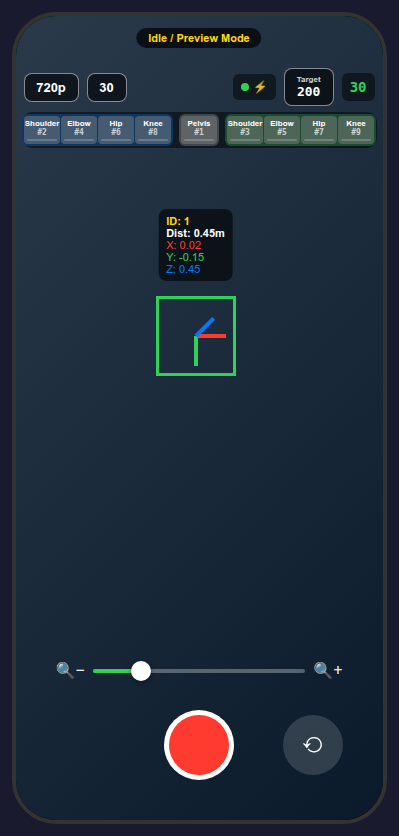
Preview mode with capture settings, receiver status, target detections, and live tag feedback.# |
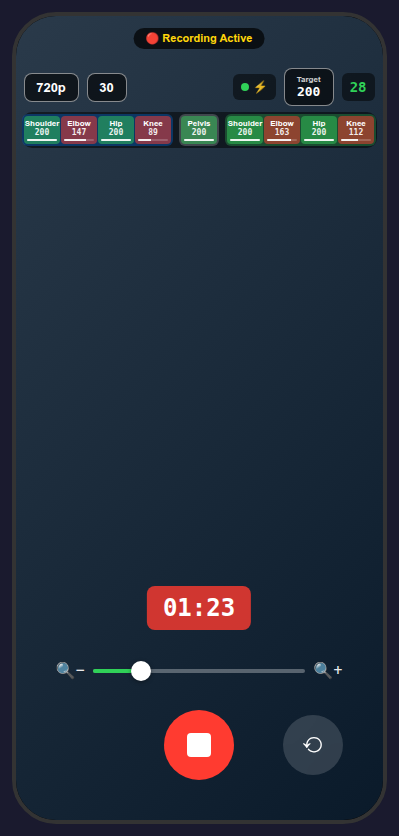
Recording mode with the timer and live detection counts.# |
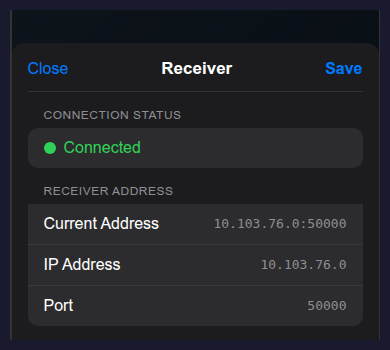
Receiver settings. Tap the receiver status chip to open the sheet, confirm connection state, and edit the receiver IP address and port manually.#
During Capture#
The live AprilTag overlay shows a bounding box, local 3D axes, and a small readout with tag ID and camera-frame position.
The tag tracker stays gray in preview, turns red while recording below the target count, and turns green once the target is met.
The front camera starts with a short 3-second countdown before recording.
If recording stops before every tag reaches the target count, the session is still saved and uploaded, but the app warns that some tags are incomplete.
Exact tag placement and ID mapping are documented in Components.
Session Output#
Each recording session uploads two files to the receiver:
video_YYYYMMDD_HHMMSS.mp4: H.264-encoded calibration videometadata_YYYYMMDD_HHMMSS.json: per-frame metadata including timestamps, intrinsics, and AprilTag detections
Common Issues#
Receiver not found: confirm the phone and receiver machine are on the same Wi-Fi network and that the manually entered IP and port match the values shown in the receiver terminal.
Connection timeout: check the receiver process, port, and any manual IP or port override inside the app.
Tags not detected: keep the 42 mm tags flat, visible, and well lit, and avoid strong motion blur.
Low detection counts: move more slowly and give the camera a little more time before stopping the recording.